Introduction to home office ergonomics and reference standards
What is ergonomics and why is it important in remote work?
Ergonomics is an interdisciplinary science that aims to comprehensively adapt the working environment to human physical and mental needs. Its main task is to create optimal conditions that simultaneously maximise productivity and minimise the negative impact of long-term tasks on health. In the context of remote work, where the employee is fully responsible for organising their environment, knowledge and implementation of ergonomic principles becomes a key investment.
This discipline is divided into conceptual ergonomics, which concerns the design of a workstation from scratch, and corrective ergonomics, which focuses on adapting and improving an existing space. A properly designed work environment brings measurable benefits that go beyond comfort alone. It leads to a significant reduction in the risk of chronic back, neck, shoulder and wrist pain. It improves overall well-being, reduces fatigue and stress, and in the long term contributes to better sleep quality and overall physical condition.
What are the health risks associated with an unergonomic home office?
Prolonged periods of time spent in a static, forced position – typical of an unergonomic home office – lead to serious health consequences. Risk analysis indicates the development of microtraumas, i.e. microscopic tissue damage that accumulates over time, leading to more serious problems known as cumulative trauma disorders (CTDs).
The most common problems include:
- back and neck pain: these result from a lack of adequate lumbar support and constant, excessive head tilt. This is especially true for people who work on laptops without external accessories, which places the equipment too low. This position forces the back to hunch over and the head to tilt, which can lead to degeneration of the cervical spine in the future;
- carpal tunnel syndrome (CTS): This is a condition caused by compression of the median nerve in the wrist. It mainly occurs as a result of prolonged work in which the wrist is twisted or tense (e.g. when using a traditional mouse). Symptoms include numbness, tingling and pain in the hand, as well as weakened grip strength.
Ignoring these guidelines is not just a matter of discomfort, but a long-term investment in increased risk of accidents at work, impaired concentration and increased treatment and rehabilitation costs.
What are the Polish ergonomic standards for workstations?
Although remote workers often organise their own workstations, it is best practice to adopt the minimum requirements set out in the Polish Regulation of the Minister of Family and Social Policy of 2023 on health and safety at workstations equipped with display screen equipment. These regulations constitute an objective and quantifiable gold standard for every computer workstation.
The health and safety requirements precisely define the workstation, which includes basic equipment (monitor, keyboard, mouse, software), a desk and chair, as well as optional equipment such as a document holder or footrest. Compliance with these standards allows for the highest degree of ergonomics to be achieved, as the criteria are strictly regulated (e.g. chair stability, lumbar adjustment, tabletop matt finish). This regulatory precision improves the quality of purchasing decisions and the organisation of the home workstation.
Biomechanical foundation: chair and desk
Adjusting the chair and desk to the user's individual dimensions is the basis of geometric ergonomics, aimed at maintaining correct angles and the natural curvature of the spine.
What features should an ergonomic office chair have?
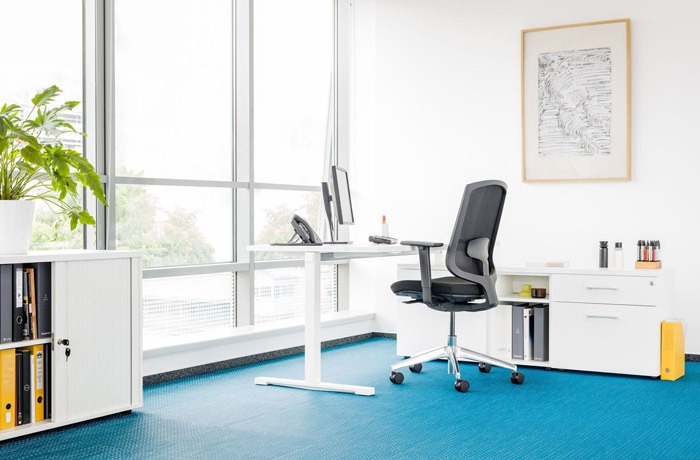
An office chair must meet a number of strict requirements to ensure stability and support for the body:
- stability and support: the chair should be sufficiently stable, which is guaranteed by a base with at least five legs, equipped with castors;
- seat adjustment: the height of the seat must be adjustable so that the feet rest comfortably on the floor. The knees should be bent at an angle of approximately 90°, and the thighs should be parallel to the floor. If the optimal height of the chair prevents stable foot support, the workstation should be equipped with a footrest at the employee's request;
- lumbar support: the chair must be contoured to the natural curvature of the spine. It is essential to be able to adjust the height of the lumbar support. In addition, it is necessary to be able to adjust the angle of the backrest to allow for a comfortable body position and freedom of movement;
- armrests: to relieve the muscles of the shoulders and upper back, the armrests must be adjustable and positioned so that the forearms can rest on them with the elbows bent at a right angle (90°). It is extremely important that all adjustment mechanisms are easily accessible and simple to use, allowing adjustment while seated.
How to choose the height of a desk depending on your height?
The optimal height of a desk depends strictly on the height of the chair and the height of the user. The key indicator is to position your elbows at a 90° angle while keeping your thighs parallel to the floor. The standard desk height, usually 70-75 cm, is only optimal for people of average height (168-170 cm).
An error in the selection of the tabletop (or chair) height makes it impossible to maintain the correct geometry of the entire workstation. Correct adjustment must be done hierarchically: first, the height of the chair is set to ensure a stable position of the lower body and feet, and then the tabletop is adjusted to maintain a 90° angle in the elbows, relieving the shoulders.
The table design must provide sufficient surface area (standard 120-160 cm long and 60-80 cm wide) and adequate space under the tabletop to allow for free movement of the legs. The surface of the tabletop must be absolutely matt to minimise glare and light reflections that can lead to eye strain.
Recommended desk and chair dimensions depending on the user's height
| User height (cm) | Optimal chair height (cm) | Optimal desk height (cm) | Biomechanical position | Accessory requirements |
| Below 168 | 40–45 | Below 70 | Knees 90°, elbows 90°, feet flat | Often requires a footrest |
| 168-170 | 40-45 | 72-75 | Knees 90°, elbows 90°, thighs parallel | Footrest optional |
| Above 170 | Customised | 80-85 | Knees 90°, elbows 90° | Adjustable or raised desk |
Is it worth investing in adjustable sit-stand desks?
Desks with electric or manual height adjustment (Sit-Stand) are a modern ergonomic solution that promotes a dynamic working style. They allow you to easily and regularly change your position from sitting to standing.
The main advantage of adjustable desks is their dual impact on health: relieving the musculoskeletal system and improving metabolic health. Regular standing up and gentle movement, which is made possible by a sit-stand desk, help to maintain a healthy metabolism. Studies show that alternating between standing and sitting (e.g. every 30 minutes) significantly reduces blood sugar spikes, which is crucial in the prevention of lifestyle diseases such as type 2 diabetes and obesity. It also reduces the risk of heart disease and back pain by avoiding static strain on the spine.
In addition, working while standing improves blood circulation, mood and overall energy levels, which translates directly into increased productivity. Investing in this type of desk should be seen as a long-term strategy for managing metabolic health.
User interface: monitor and peripherals
Optimal positioning of interface elements (monitor, keyboard, mouse) is crucial for minimising eye strain and tension in the upper limbs, neck and nape of the neck.
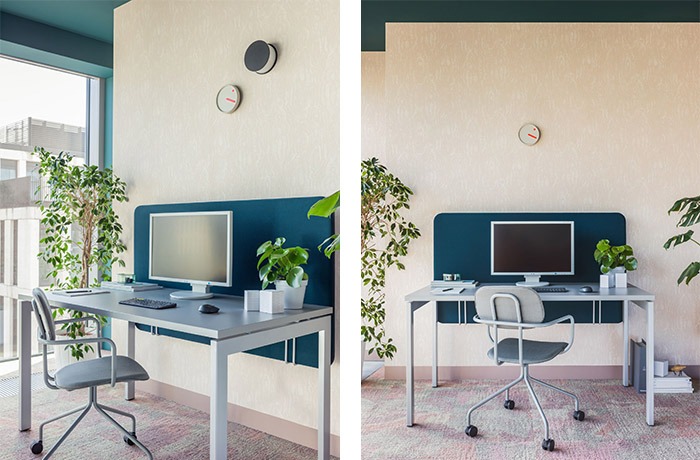
How to position your monitor correctly in your home office?
Incorrect monitor positioning is one of the most common causes of cervical spine problems, especially when using laptops without additional accessories.
Key rules for monitor positioning:
- height and angle: the top edge of the monitor should be at eye level or slightly below. The centre of the screen should be positioned at an angle of approximately 15° below the line of sight, which corresponds to the natural line of comfortable viewing. The screen itself should be tilted slightly, by 5-10°;
- distance: the screen should be about an arm's length away from your eyes, although this distance depends on the size of the monitor and any vision impairments;
- use of a mount: to achieve these parameters, a monitor mount or stand is necessary, especially for laptops. A monitor mount is an indispensable element of an ergonomic workstation, allowing for precise adjustment of height, distance and tilt, which prevents sitting in a forced position with an excessively bent head. Monitor stands additionally support the correct positioning of the legs and hips, which improves blood circulation in the lower body.
How to prevent wrist pain when working on a computer?
In accordance with health and safety requirements, the keyboard and mouse must be separate pieces of equipment at the basic workstation. The design of the desk must ensure a distance from the edge of the tabletop that allows support for the hands and forearms, maintaining at least a right angle (90°) at the elbows.
Minimising wrist twisting is the basis for preventing Carpal Tunnel Syndrome (CTS). To achieve this, the following are recommended:
- ergonomic input accessories: split keyboards facilitate a natural, comfortable position for the wrists and forearms. A vertical mouse is an advanced tool that positions the hand in a natural position, similar to a handshake. This arrangement minimises muscle and joint tension, providing a key alternative to traditional mice that force wrist twisting;
- wrist support: the use of wrist pads (e.g. gel or FoamFusion™ technology) helps to keep the wrists in a correct, neutral position. The quality of the material is important; it should be pleasant to the touch and prevent the hands from sweating during prolonged use.
What additional support accessories are recommended by health and safety regulations?
The workstation should be flexible. At the employee's request, it should be equipped with two key support elements:
- document holder with adjustable height, tilt and distance settings. The use of the holder eliminates the need for uncomfortable head and neck movements when transcribing data;
- footrest, required if the employee is unable to keep their feet flat on the floor while maintaining a 90° angle at the knees.
Working environment: lighting, acoustics and space organisation
Environmental ergonomics includes non-geometric factors such as light and order, which have a direct impact on concentration and eye strain.
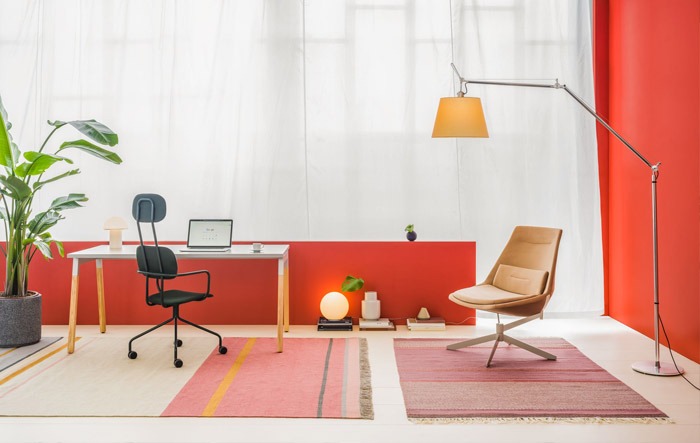
What lighting parameters are optimal for a home office?
Lighting plays a key role in employee productivity and well-being, reducing eye strain, headaches and stress. Optimal lighting conditions should be calibrated using two key parameters:
- light intensity (Lux – lx): the most favourable light intensity for office work is between 500 and 750 lx. The minimum requirement for a home office/study is 500 lx;
- light colour (Kelvin – K): colour temperature (CCT) determines stimulation or relaxation. For tasks requiring high concentration and efficiency, a cool or neutral colour in the range of 5000-6500 K is recommended. This contrasts with warm light (approx. 2700 K), which promotes relaxation (e.g. in the bedroom).
To ensure the required intensity, especially for difficult visual work (above 750 lx), it is recommended to use complex lighting, combining general lighting with local lighting. Adjustable LED office lamps allow for precise adjustment of intensity and colour to the conditions prevailing during the day.
How to position your monitor relative to the window to avoid glares?
Incorrect positioning of the monitor relative to windows is the main cause of reflections and glare, which force you to adopt uncomfortable positions and constantly change the brightness of the screen.
- Monitor position: The best position is to place the monitor sideways to the window. Positioning the screen facing or back to a strong light source (including the sun) causes extreme glare or excessive contrast, which strains your eyes.
- Light control: It is necessary to use curtains or blinds to control the intensity of direct sunlight falling on the screen and the matte surface of the desktop. The position of the monitor and light sources must minimise glare and reflections.
Does cable organisation affect productivity?
Workspace organisation, especially cable management, goes beyond aesthetics; it is a form of mental ergonomics that affects performance. Studies show that chaotic clutter, especially tangled cables, is a constant source of distraction that strains cognitive abilities and negatively affects mood and concentration.
Good cable management also contributes to the overall performance of electronic devices by preventing overheating and reducing stress on connectors. Effective cable organisation methods:
- vertical routing: the use of cable ducts and guides that run from the worktop to the floor. This solution minimises clutter on the desk surface and floor;
- mounting rails: horizontal bars mounted under the tabletop that are used to bundle cables and maintain an orderly cable path, thus relieving stress on the connectors.
Behavioral ergonomics and recovery strategies
Even the best equipment loses its advantages if the user spends hours in a static position. Behavioral ergonomics focuses on implementing routines that interrupt prolonged strain, ensuring muscle and vision recovery.
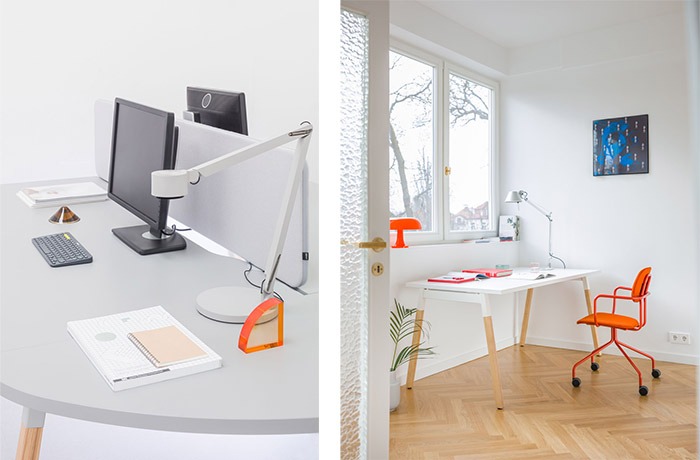
What breaks from working at a monitor are recommended by health and safety regulations?
Polish health and safety regulations for workstations with computer monitors clearly regulate the obligation to take breaks. The employer must ensure that the employee has the opportunity to alternate work at the monitor with other tasks that do not strain the eyes, or at least a 5-minute break, counted as working time, after each hour of uninterrupted use of the computer monitor.
In order to optimize concentration and mental regeneration, interval work techniques can be used, such as:
- the 52/17 rule: working in intense, focused sprints lasting 52 minutes, followed by a longer 17-minute break for full physical and mental regeneration;
- changing position: regular standing up and gentle movement (e.g., balancing on one leg or lifting your heels if you use a sit-stand desk) is key to improving blood circulation and maintaining metabolism. Users should actively seek opportunities to move, for example, by placing the printer at a distance from the desk.
What is the 20-20-20 rule and why is it important?
Prolonged focus on close distances forces the eye to constantly accommodate, which leads to tension in the intraocular lenses and, as a result, eye strain, headaches, and temporary blurred vision.
To prevent this, it is necessary to apply the 20-20-20 rule:
- every 20 minutes of working in front of a screen,
- take a 20-second break,
- look at an object at least 20 feet away (about 6 meters, although the Polish adaptation often suggests 20 m for more complete relaxation of accommodation).
In addition, in the context of occupational health and safety, if the results of preventive eye examinations show the need to use glasses or corrective lenses when working with a monitor, the employer is obliged to provide them.
What micro-exercises can you do at your desk?
Stretching micro-exercises are a cheap and extremely effective method of preventing strain injuries. They help activate and strengthen stabilizing muscles that are inactive during prolonged sitting.
A detailed program of stretching exercises that can be performed without leaving your workstation:
- torso twists on a chair: goal: to increase spinal flexibility and reduce tension in the lower back; execution: sitting upright, twist your torso and grab the backrest, holding the position for 10-15 seconds on each side;
- neck stretch: goal: to relieve tension in the neck and upper back; execution: slowly tilt your head toward your shoulder, gently pressing with your hand to deepen the stretch; hold the position for 15 seconds, repeat on the other side;
- Seated bends: goal: to stretch the lower back and hips; execution: sitting on the edge of a chair, lean forward, relaxing your shoulders and head, trying to touch the floor; hold the position for 15-20 seconds.